Palbreed Guide
How to use the Breeding Path
Import your Palworld save, choose the Pal you want and the passives it should carry, and Palbreed draws the exact breeding tree from the Pals you already own. Six steps, all on this page.
Open the Breeding Path- 1
Pick “Import save”
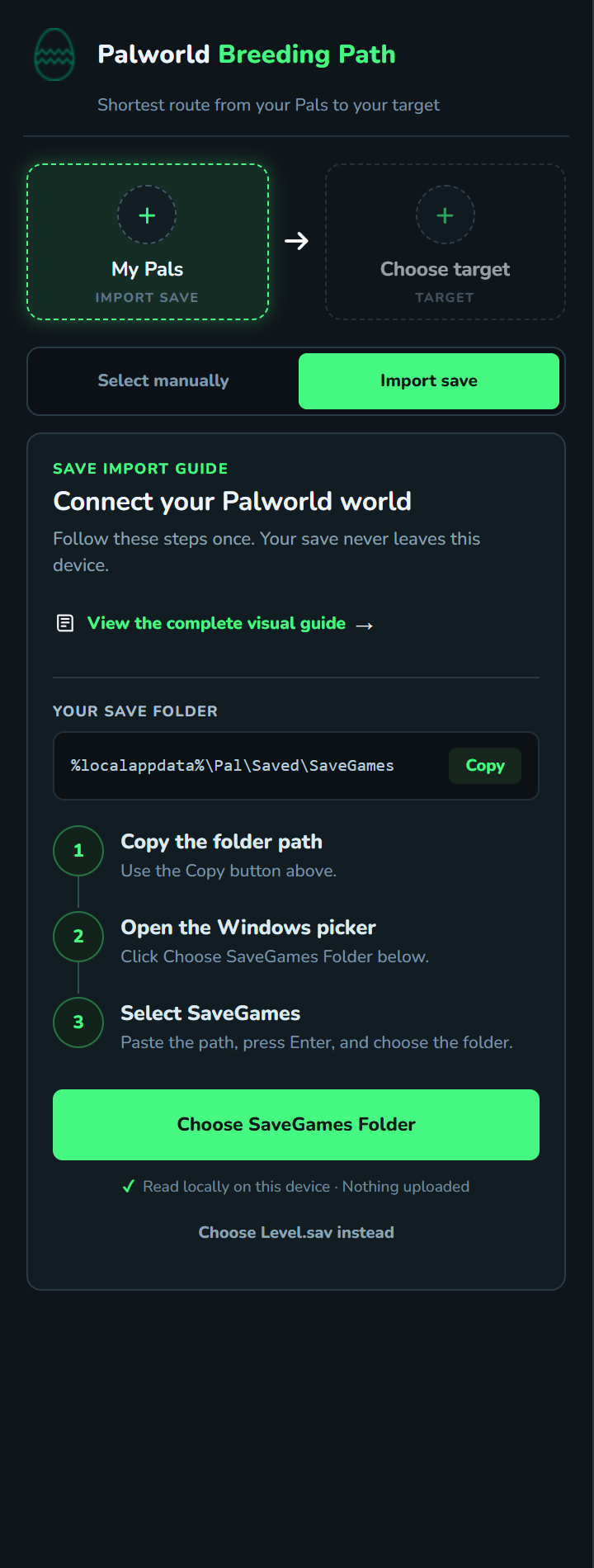
On the Breeding Path, click the My Pals slot and choose Import save. The panel shows your save folder path with a Copy button — you'll paste it in the next step.
Your save is read on your device only. Nothing is uploaded.
- 2
Paste the path into the Windows picker
Click Choose SaveGames Folder and the Windows folder picker opens. Paste the copied path into the Folder field at the bottom, press Enter — the picker jumps straight into SaveGames — then confirm with the Upload / Select Folder button.
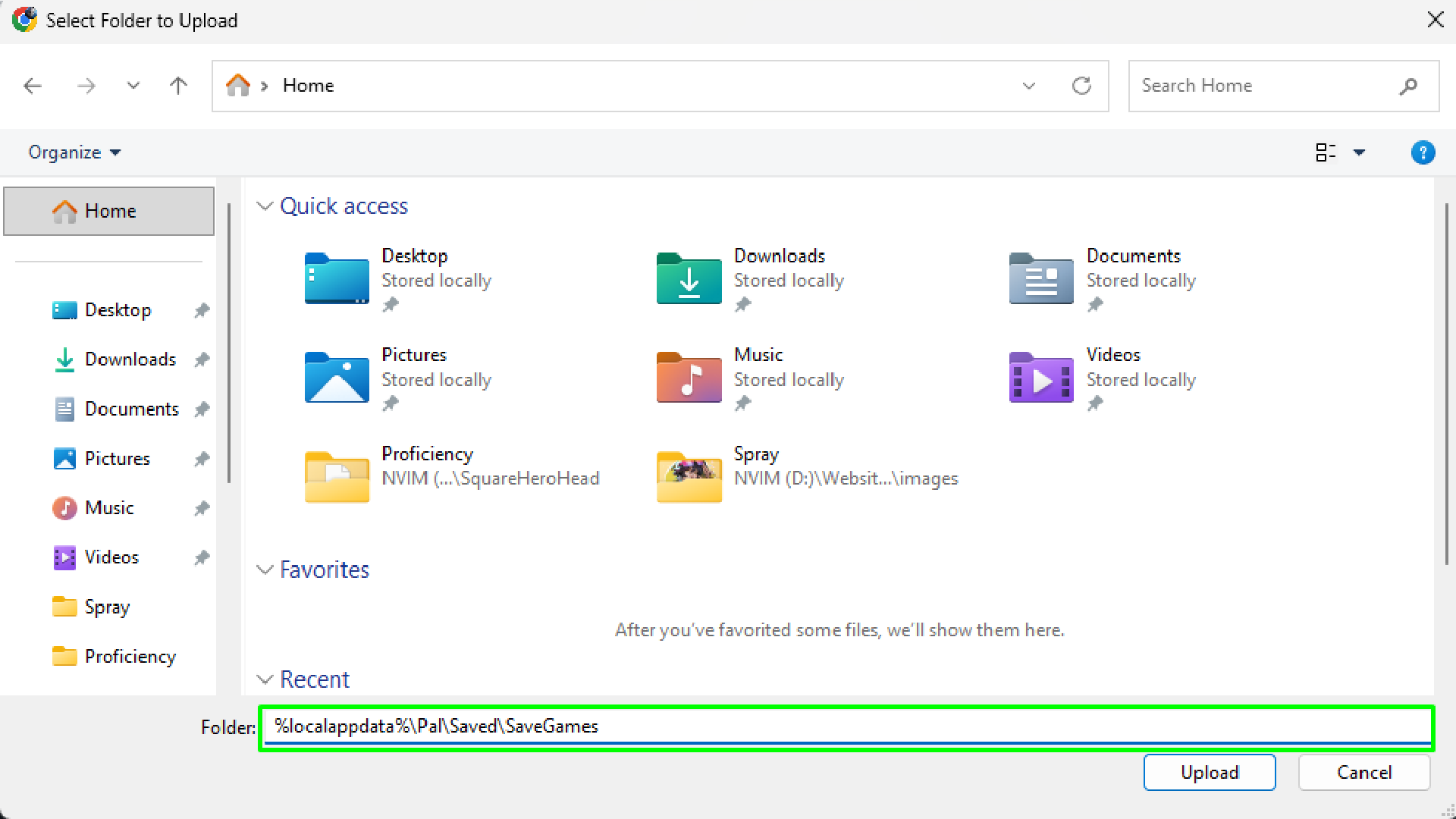
Paste the copied path into the Folder field and press Enter 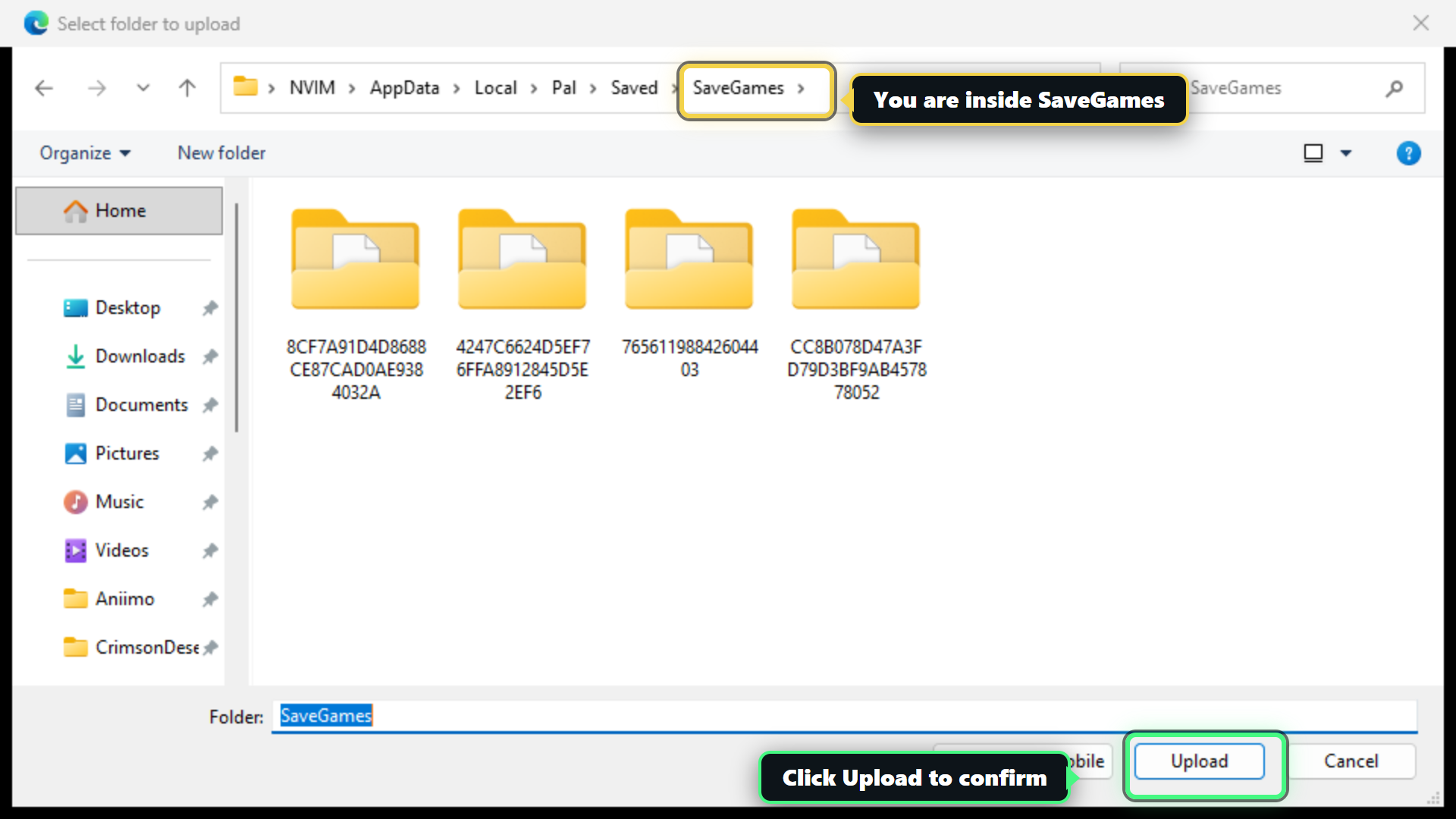
The picker jumps into SaveGames — confirm with Upload - 3
Choose your Palworld world
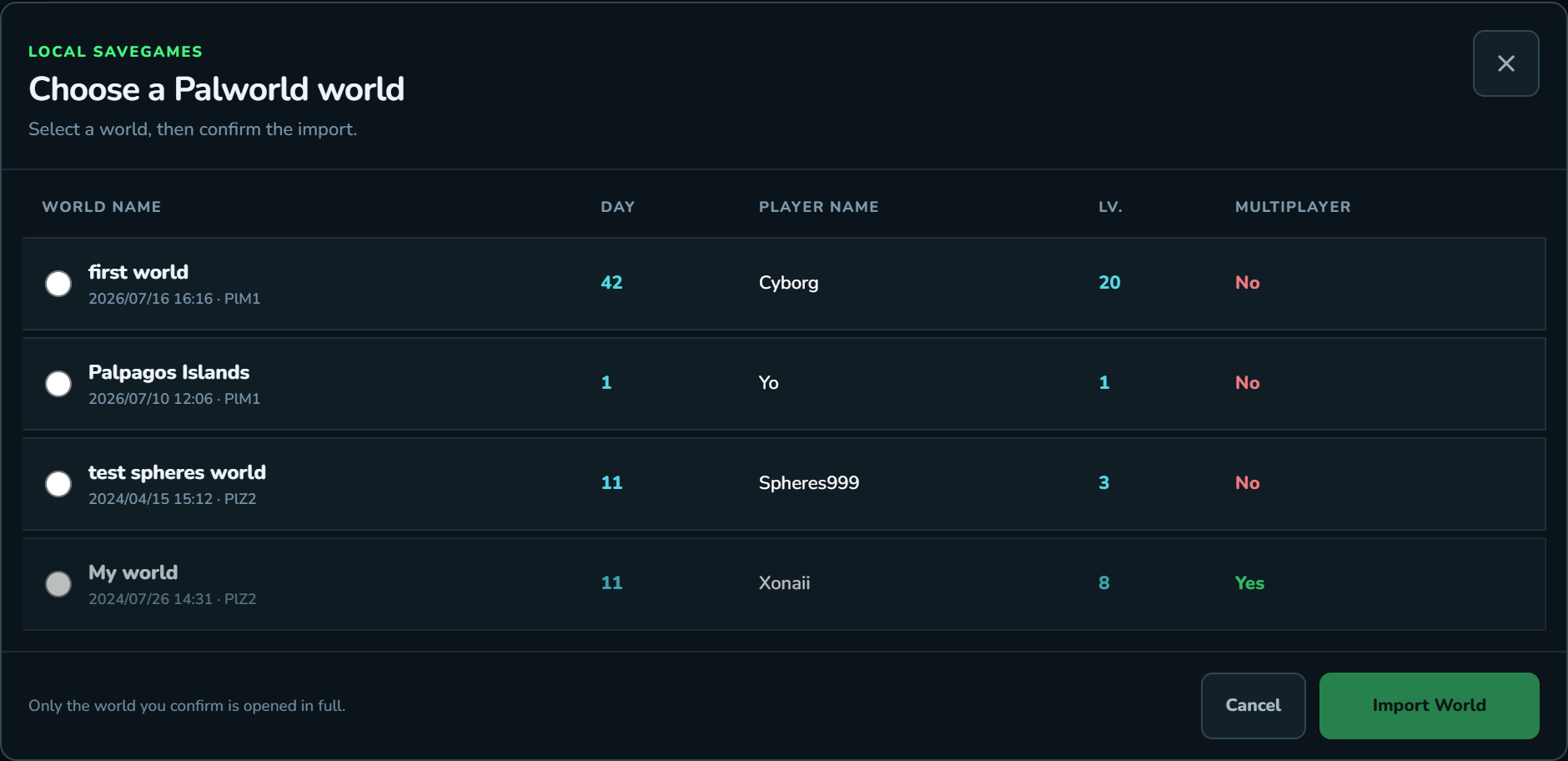
Palbreed lists every world it finds — with the world name, day, player, and level — so you can pick the right one and hit Import World.
Single-player and co-op worlds both work — in a co-op world every player's owned Pals are imported.
- 4
Your Pals appear in the sidebar
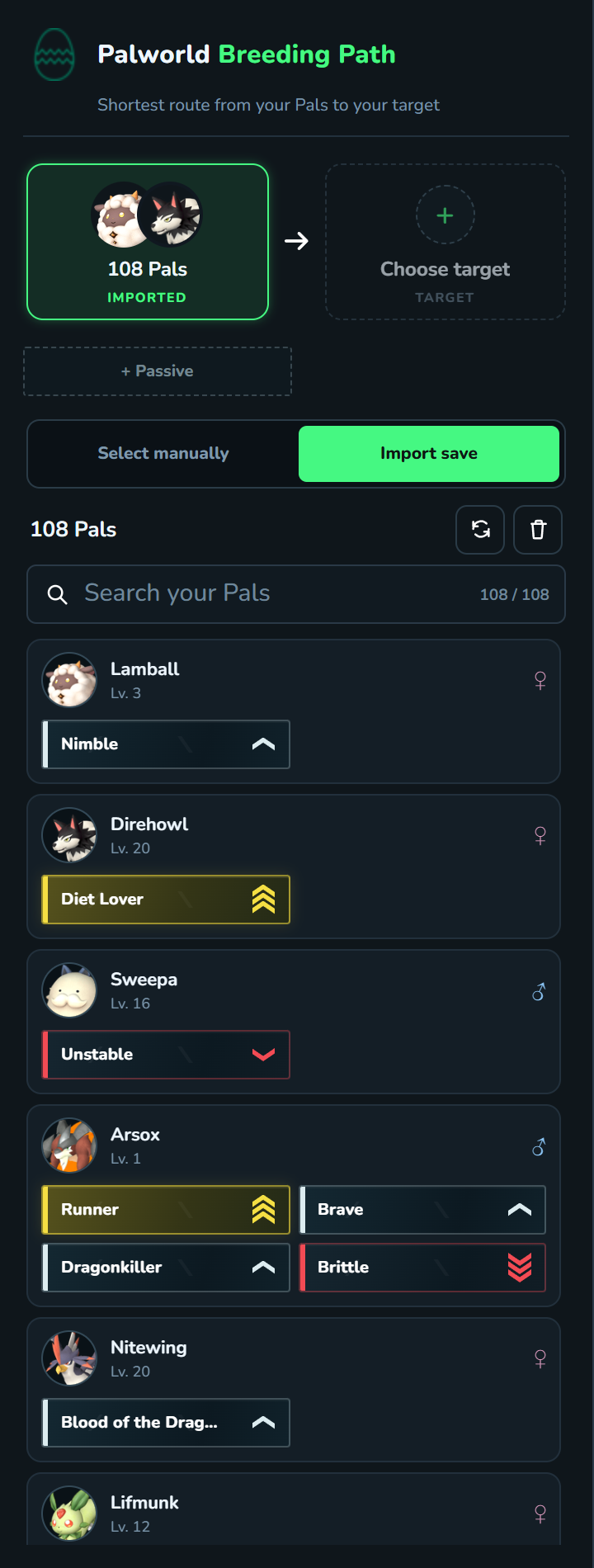
Every Pal from that world is imported with its sex, level, and passive skills — shown exactly like the in-game passive panel. Search by name, nickname, passive, or sex to check what you own.
- 5
Pick your target Pal
Click the Target slot, search the Pal you want to breed, and select it. The recipe at the top always reads left to right: your Pals your target.

- 6
Choose the passives you want
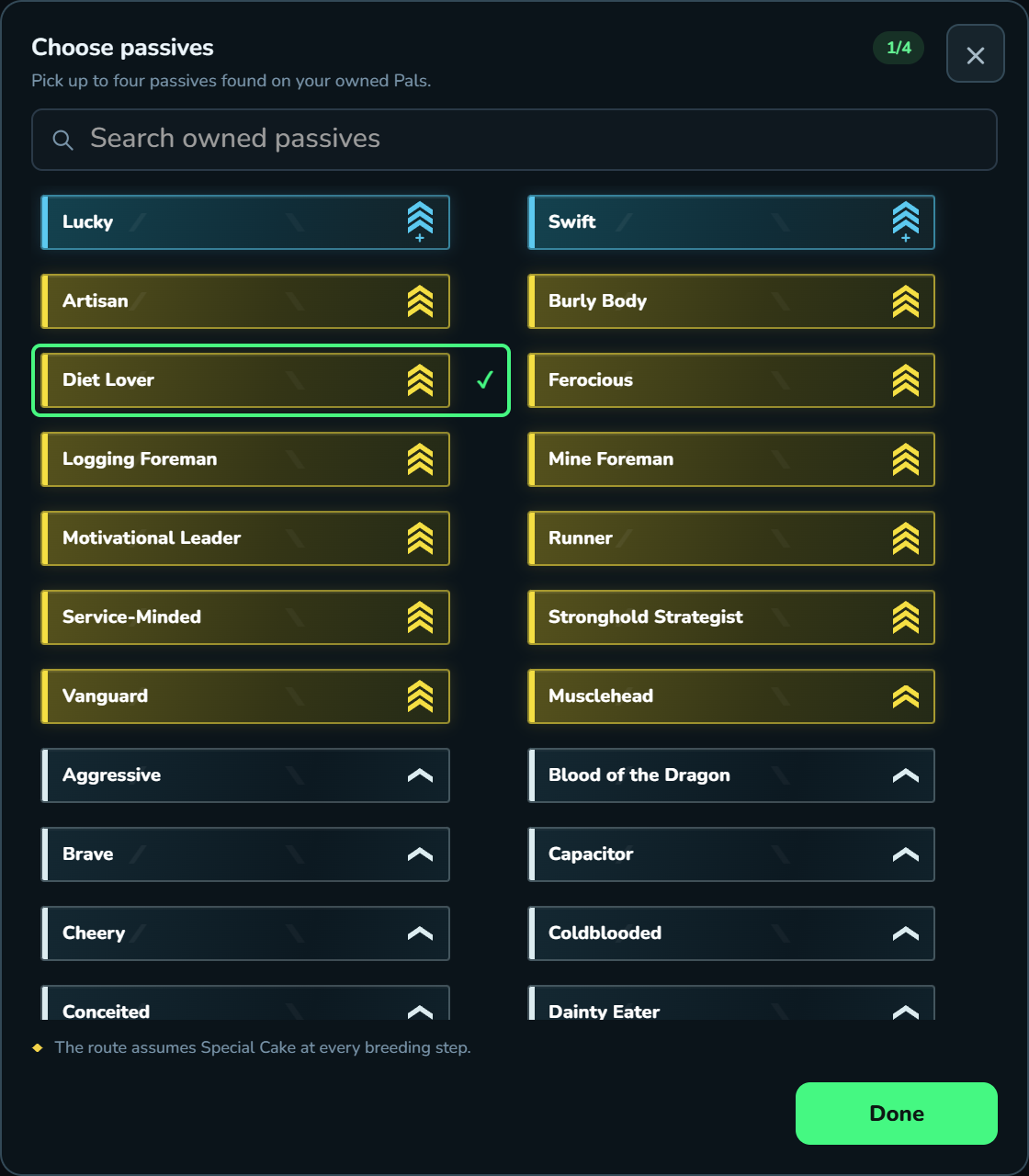
Click + Passive and pick up to four passives — the list only shows passives that actually exist on your owned Pals, in their in-game colors. Palbreed then routes those passives onto your target.
Routes assume Special Cake at every breeding step.
- 7
Read your breeding tree
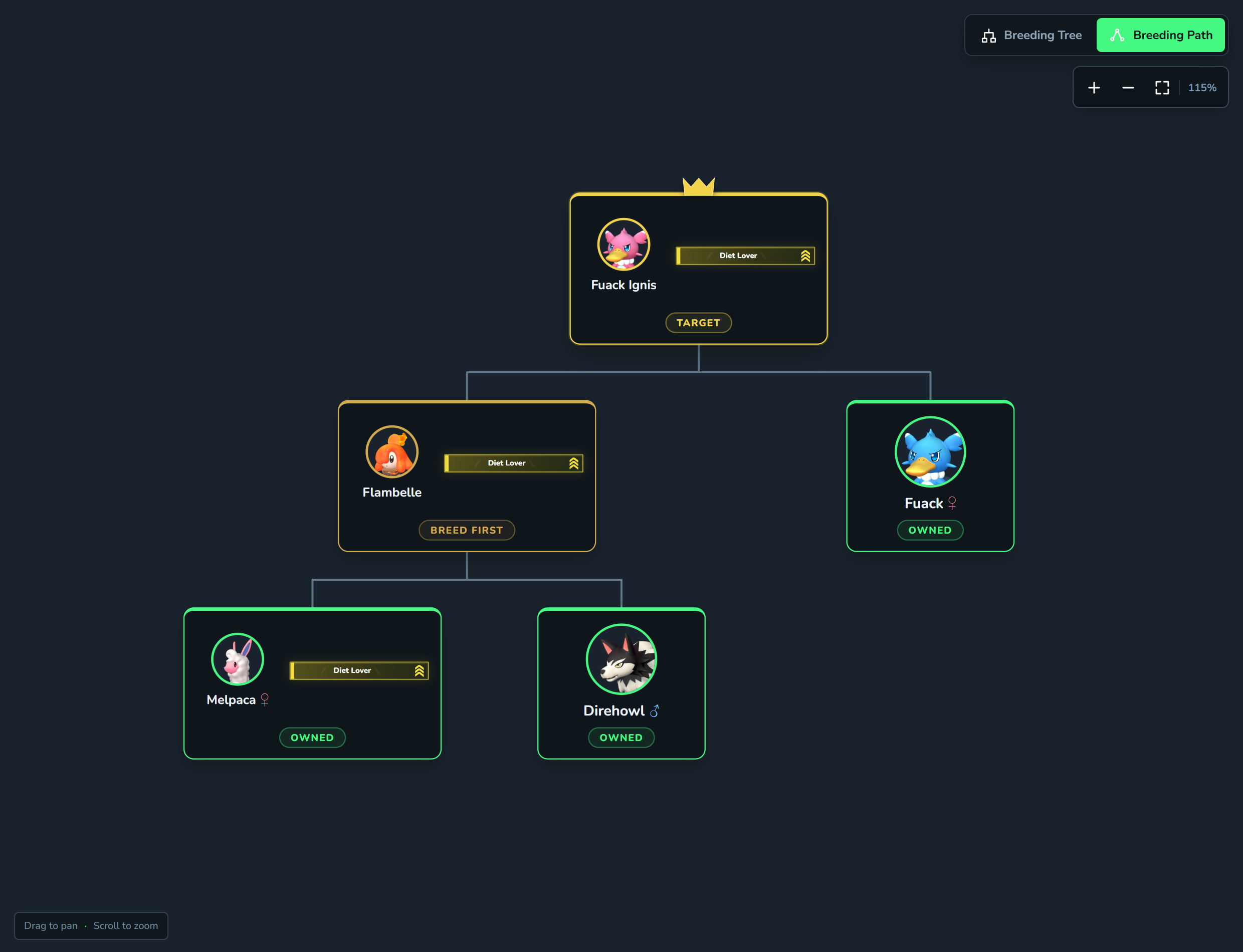
The tree appears on the right. Green cards are Pals you already own — the ♂/♀ mark shows which one to grab. Gold cards are Pals you must breed first, and the crown marks your target. The bars on a card are the passives to keep at that step. Drag to pan, scroll to zoom.